
How copy trading works
The ICC master account trades on its own MetaTrader 5. The ICC Copier EA runs in your MetaTrader 5, asks the ICC server about once a second for the master's open trades and copies them into your account — with a lot size that fits your balance.
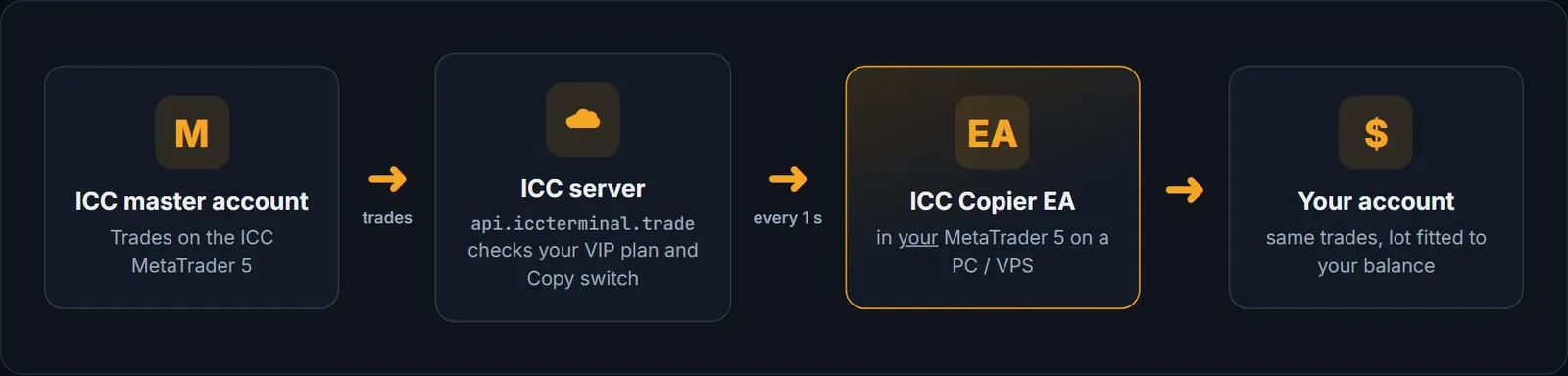
- New trade on the master → the EA opens the same trade (same symbol and direction) for you.
- Stop loss / take profit changed → your copy is updated.
- Part of the trade closed → the same share of your copy is closed.
- Trade closed → your copy is closed.
What you need
Check this list before you start:
- An ICC Terminal account with an active VIP plan (copy trading is a VIP feature).
- A MetaTrader 5 trading account with a broker. We recommend Axi — the Open Axi Account button is in the app. Any MT5 broker that offers the same markets works too.
- MetaTrader 5 on a Windows PC or a VPS that stays on 24 hours, 5 days a week. The EA only copies while MT5 is open and connected.
- About 10 minutes for the setup.
Step 1 — Download the ICC Copier EA
You can download the EA (file ICC_Copier.ex5) in three places:
- App: tab More → Trades & copy → Copy Trading card → Download EA.
- Web / Windows terminal: tab Copy Trading → Download ICC Copier EA.
- Website: iccterminal.trade → Download the ICC Copier EA.
Step 2 — Put the EA into MetaTrader 5
MetaTrader 5 only sees EAs that are inside its own data folder.
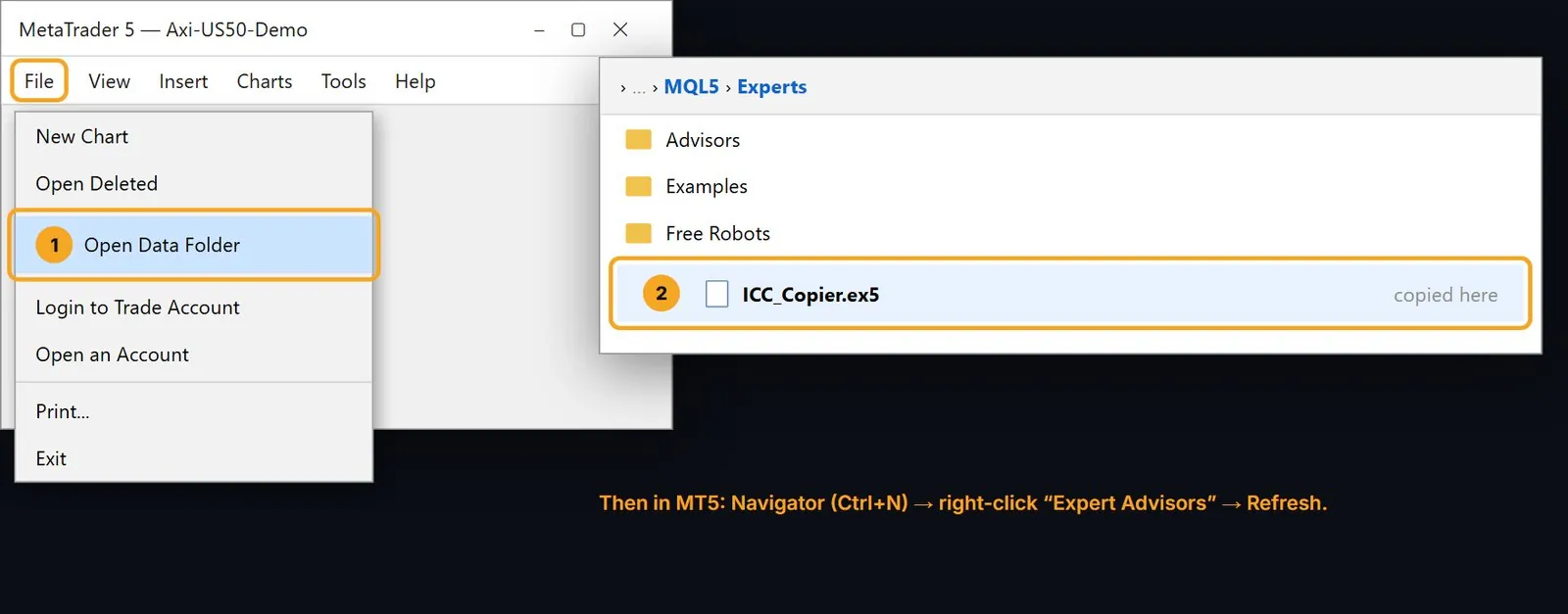
- Open MetaTrader 5 and log in to your trading account.
- Click File → Open Data Folder. A Windows folder opens.
- Open MQL5, then Experts, and copy
ICC_Copier.ex5into it. - Back in MetaTrader 5, open the Navigator (Ctrl+N), right-click Expert Advisors and click Refresh. ICC_Copier now appears in the list.
Step 3 — Allow the EA to talk to the ICC server
The EA gets the master's trades over the internet, so MetaTrader 5 must allow it once:
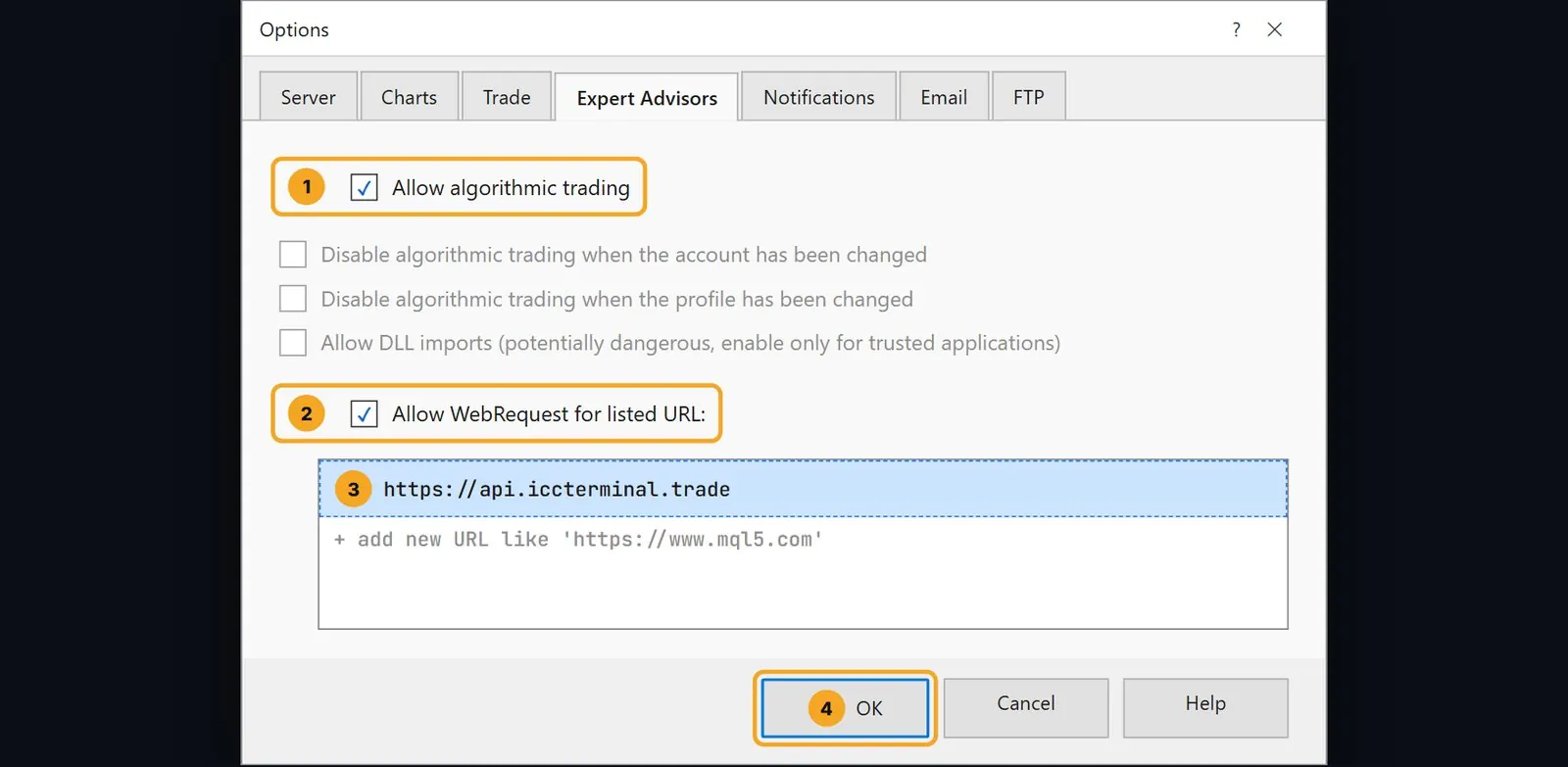
- Click Tools → Options and open the Expert Advisors tab.
- Tick Allow algorithmic trading.
- Tick Allow WebRequest for listed URL, double-click the empty line below it and type
https://api.iccterminal.trade— exactly like this. - Click OK.
- Make sure the Algo Trading button in the top toolbar is switched on (green).
Step 4 — Get your EA token
The EA token connects the EA to your ICC account. Get it in the app (tab More → Trades & copy → Copy Trading card) or in the web / Windows terminal (tab Copy Trading):
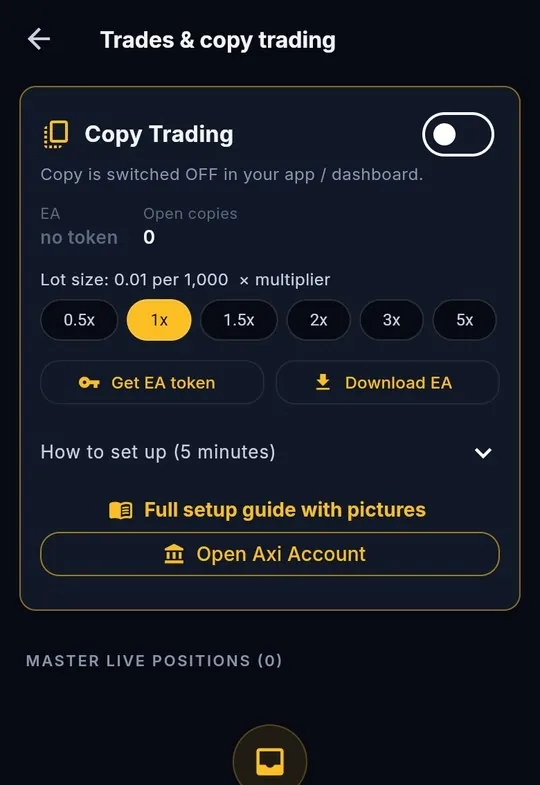
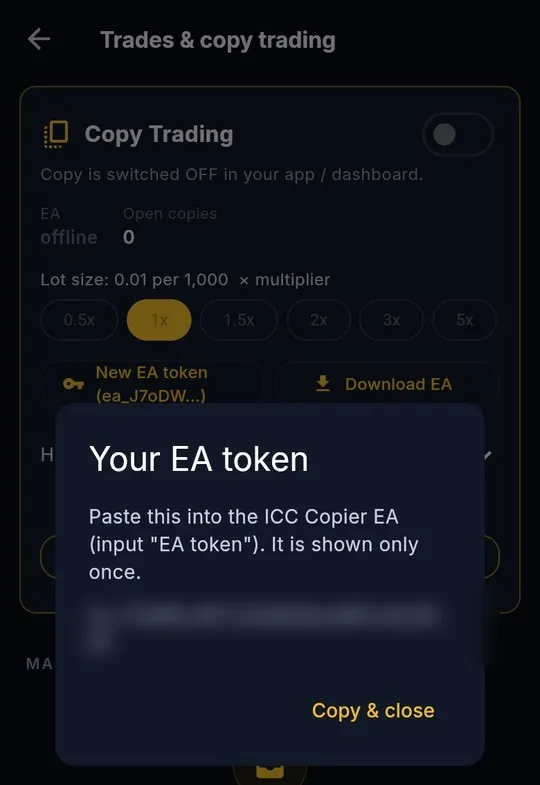
- Tap Get EA token (or New EA token if you had one before).
- The token starts with
ea_. It is shown only once — tap Copy & close (app) or copy it from the box (web) and keep it safe. - Treat the token like a password: anyone with it can connect an EA to your account.
Step 5 — Start the EA on one chart
Open any one chart (for example EURUSD) — the EA copies every market from that one chart.
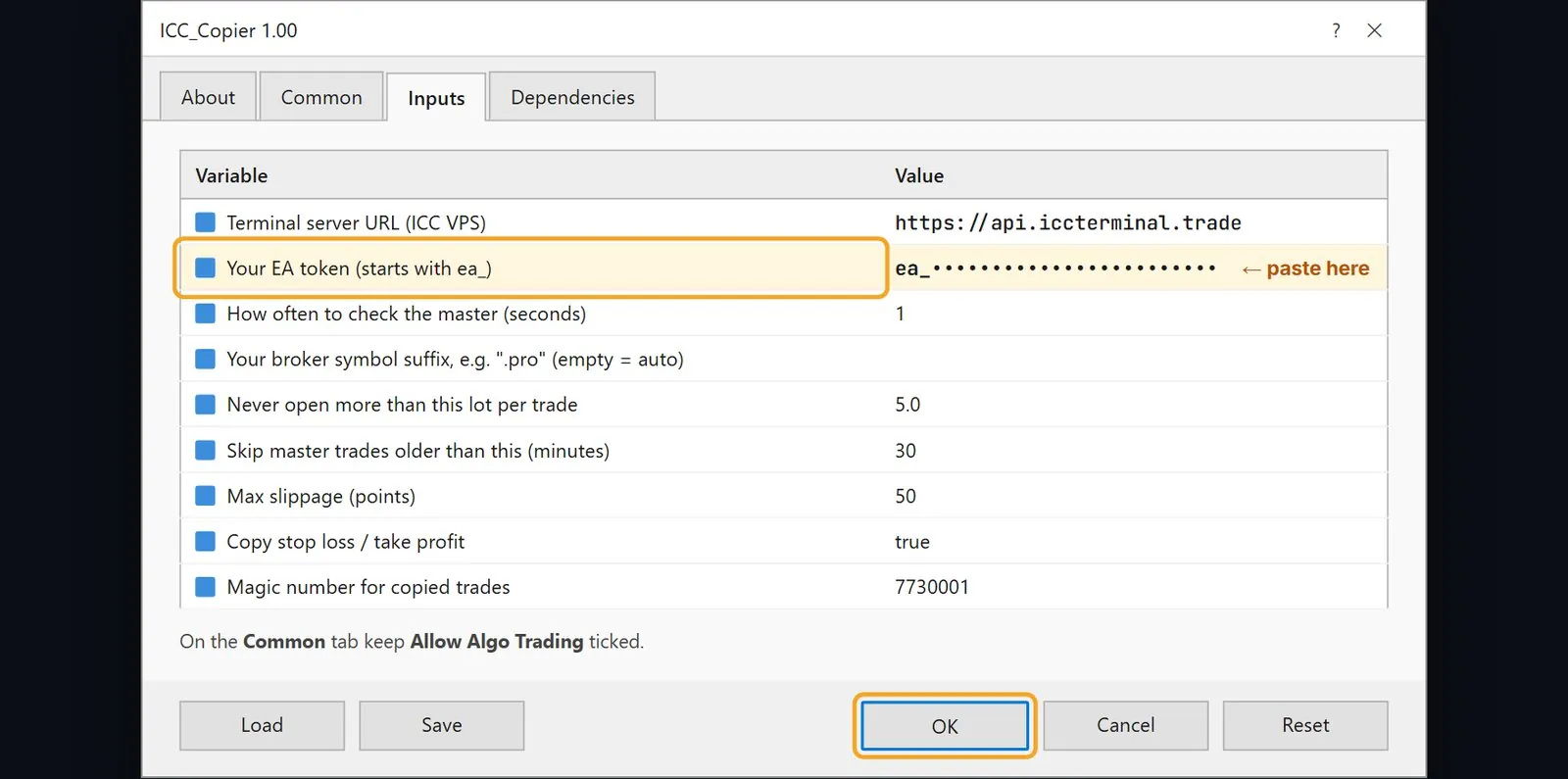
- Drag ICC_Copier from the Navigator onto the chart.
- On the Common tab, make sure Allow Algo Trading is ticked.
- On the Inputs tab, double-click the value of Your EA token and paste your token.
- Leave the other settings as they are (see the table below) and click OK.
| Setting | Default | What it does |
|---|---|---|
| Terminal server URL | https://api.iccterminal.trade | The ICC server. Do not change it. |
| Your EA token | empty | Paste your token here (starts with ea_). |
| How often to check the master | 1 second | How fast new trades are copied. |
| Your broker symbol suffix | empty (automatic) | Usually not needed: the EA finds your broker's name by itself (e.g. master XAUUSD.pro → your XAUUSD). |
| Different symbol names | empty (automatic) | Only if your broker uses a completely different name, e.g. XAUUSD=GOLD;US30=DJ30. |
| Never open more than this lot | 5.0 | Safety limit per trade. |
| Skip master trades older than | 30 minutes | Trades the master opened longer ago are not copied (late entries at a worse price). |
| Max slippage | 50 points | Largest price difference accepted when opening. |
| Copy stop loss / take profit | true | Copies the master's SL and TP. |
| Magic number for copied trades | 7730001 | Marks the copied trades. Do not change it while copies are open. |
Step 6 — Switch copying on
Go back to the app (tab More → Trades & copy) or the web / Windows terminal (tab Copy Trading):
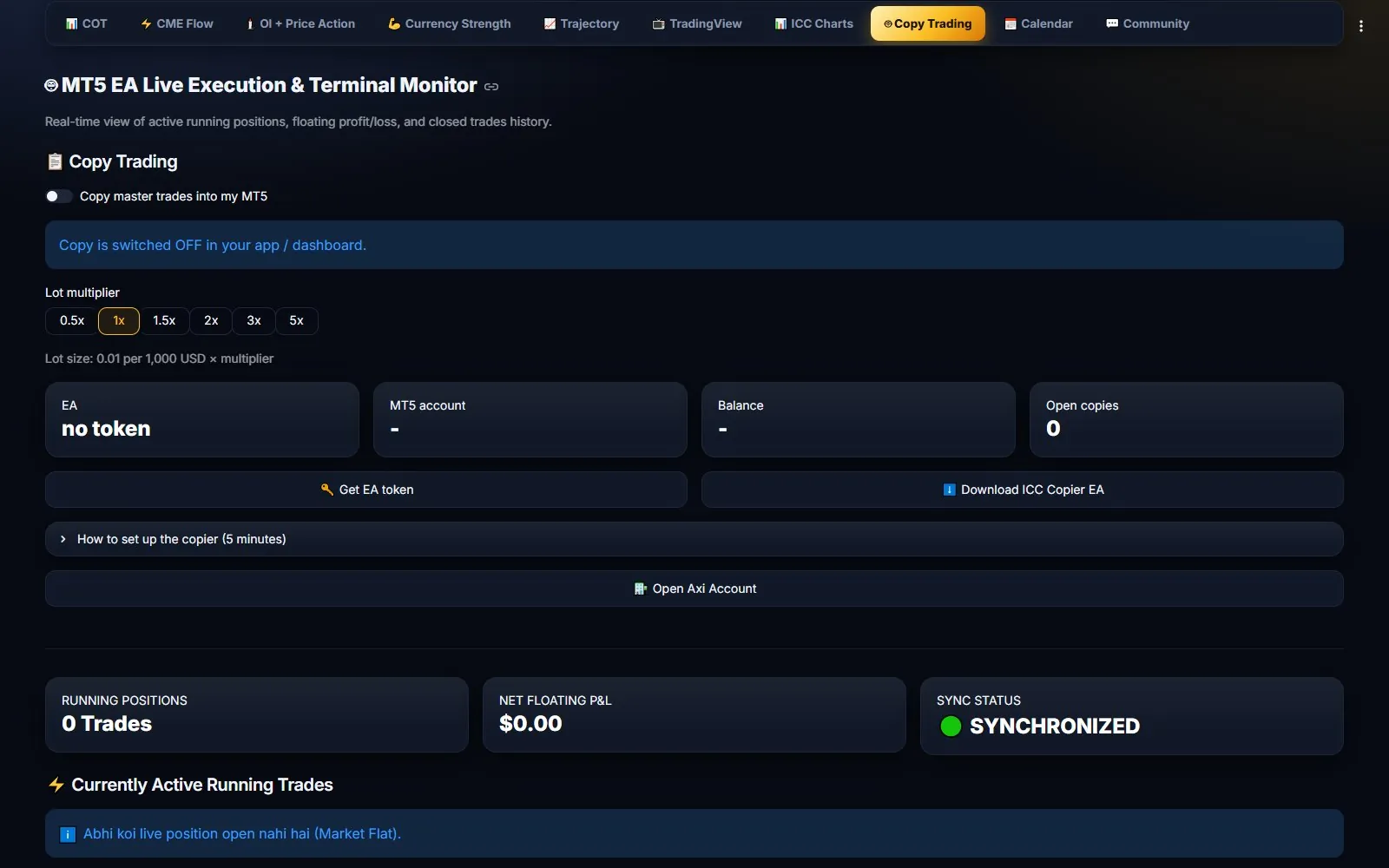
- Switch Copy master trades into my MT5 ON.
- Choose your Lot multiplier (0.5x, 1x, 1.5x, 2x, 3x or 5x). 1x is the normal size.
- Within a minute the card shows EA: online, your MT5 account number and balance.
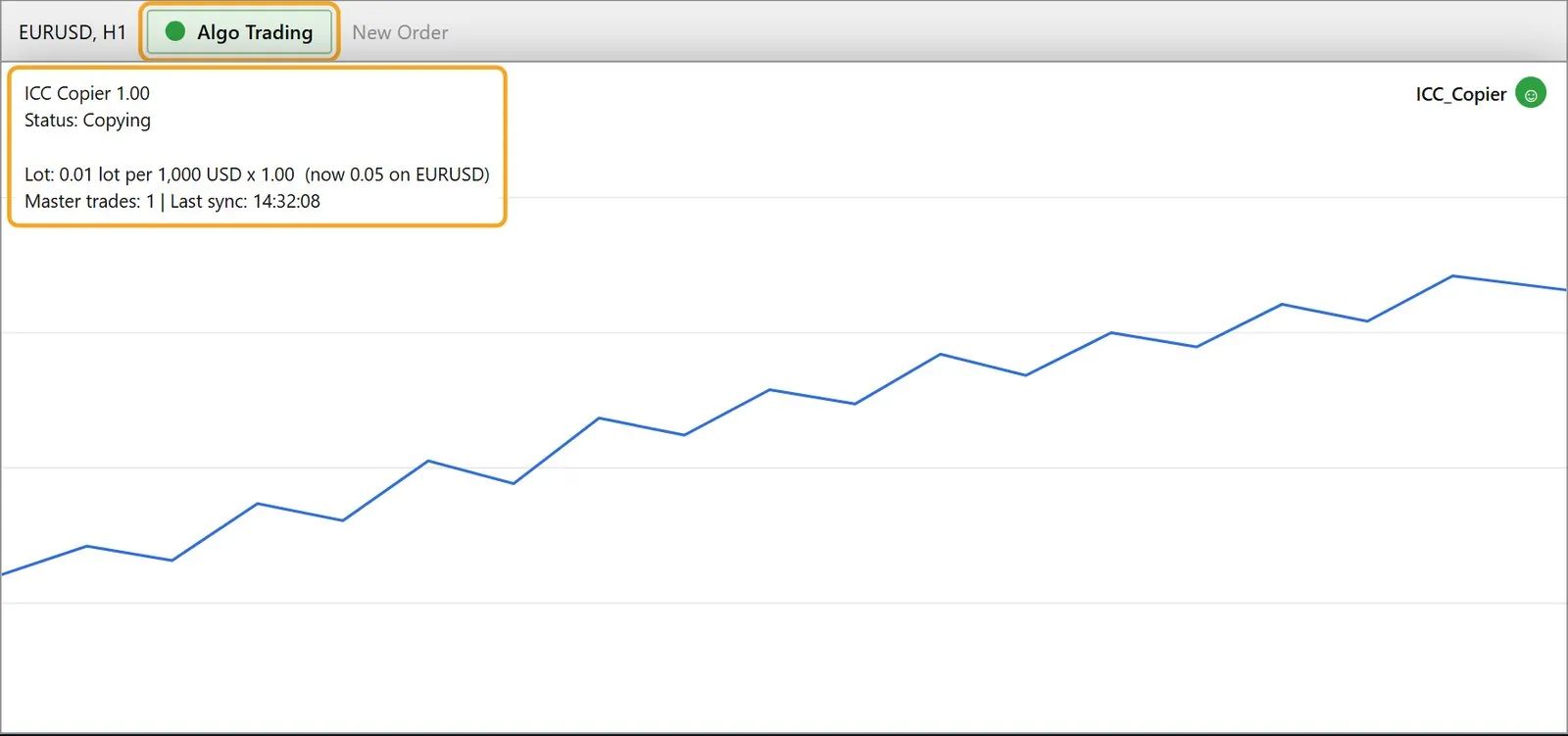
- On the MT5 chart the EA shows Status: Copying.
How your lot size is calculated
Every copied trade uses the same formula:
| Balance | 0.5x | 1x | 2x | 5x |
|---|---|---|---|---|
| 500 USD | 0.01 | 0.01 | 0.01 | 0.02 |
| 1,000 USD | 0.01 | 0.01 | 0.02 | 0.05 |
| 5,000 USD | 0.02 | 0.05 | 0.10 | 0.25 |
| 10,000 USD | 0.05 | 0.10 | 0.20 | 0.50 |
| 50,000 USD | 0.25 | 0.50 | 1.00 | 2.50 |
- The lot does not depend on the master's lot — only on your balance and multiplier.
- Balances under 1,000 USD still copy with the smallest lot (0.01), which means more risk compared with your balance.
- The app and terminal show Lot size … → x.xx lot now for your current balance.
What is copied — and what is not
- Copied: new master trades opened in the last 30 minutes, SL/TP changes, partial closes (same share of your lot) and full closes.
- Not copied: master trades that were already older than 30 minutes when your EA saw them — for example trades opened before you started the EA or while your PC was off.
- Copy switched OFF (or VIP plan ended): no new trades are opened. Copies that are already open still follow the master — they are closed when the master closes them.
- PC / VPS off or no internet: nothing happens to open copies. When the EA is back online it catches up: it closes copies whose master trade is closed and updates SL/TP.
- Symbols: the EA finds your broker's name automatically (e.g.
XAUUSD,XAUUSD.pro). If a market is still not found, the Experts tab shows “symbol … not found” — enter your broker's name in Different symbol names, e.g.XAUUSD=GOLD.
Status messages and what to do
The EA writes its status in the top-left corner of the chart. The app / terminal card shows the same reason.
| Message | What to do |
|---|---|
| Status: Copying | Everything works. |
| Status: Paused — Copy is switched OFF in your app / dashboard. | Switch Copy master trades into my MT5 ON. |
| Copy trading needs an active VIP plan. | Buy or renew a VIP plan (app: My Account). |
| Token rejected / Invalid EA token | Make a new token and paste it into the EA's Your EA token setting. |
| Add https://api.iccterminal.trade in Tools > Options > … | Do Step 3 again and check the address. |
| Cannot reach server | Check the internet of the PC / VPS. The EA retries by itself. |
| Copy trading is paused by the admin. | Copying is paused for everyone for a moment. Nothing to do. |
| EA: offline (in the app) | MT5 is closed, the PC / VPS is off, or the EA is not on a chart. |
| A trade was not copied | Look at MT5 → Toolbox → Experts tab: “too old”, “symbol not found”, not enough margin or market closed. |
Good habits
- Use a VPS so MT5 runs 24/5 even when your own PC is off.
- Start with 1x (or 0.5x) and watch a few trades before you increase the multiplier.
- Keep enough free margin — if the account has too little margin, the broker rejects the copy.
- Don't change the EA's Magic number or remove “ICC#” comments from copied trades.
- Check the app's Copy Trading card now and then: EA: online and Open copies tell you everything is fine.
Questions? Tap Need help? Contact support in the app or write to us on WhatsApp: +92 330 4040740.
Risk warning
Copy trading opens real trades in your account. Losses of the master account are copied too. Past results do not guarantee future results. Trading forex, commodities, indices and crypto on margin carries a high level of risk and may not be suitable for everyone. Only trade money you can afford to lose.